There are multiple reasons Home Assistant Cloud cannot be reached. This page provides instructions how to troubleshoot the "Unable to reach the Home Assistant Cloud" message.
Message: "Unable to reach the Home Assistant Cloud"
Symptom
Under System > Home Assistant Cloud:
- This message can show in 2 different situations:
- You are logged in to Home Assistant Cloud and the Cloud connection status is Connecting.
- This is the first time you are trying to log-in to Home Assistant Cloud.
- You see a message Unable to reach the Home Assistant Cloud, or signing in fails with Authentication timed out.
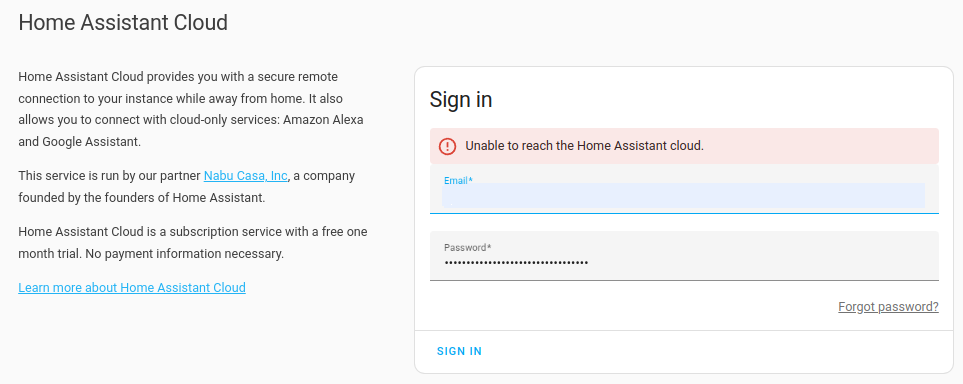
If you can sign in to your account on the website with the same password, your password is not the problem. The website uses the network of the phone or computer you are browsing on, while Home Assistant has to reach our sign-in service itself.
Cause
This error indicates a network issue. It most often occurs when the Home Assistant host has an IPv6 address that cannot reach the internet, usually because your router is still handing out an IPv6 range that your internet provider no longer uses. Signing in is the step most sensitive to this, which is why it can fail while the rest of Home Assistant keeps working normally. It is also why a fresh installation on the same network fails in the same way.
Resolution
Refresh your network first
Your internet provider gives your router a range of IPv6 addresses, and the router hands addresses from that range to the devices on your network. When the provider changes the range, for example after an outage or a lease renewal, the router does not always let go of the old one. It can keep handing it out, and Home Assistant keeps using an address that no longer reaches the internet.
Restarting the router makes it ask the provider for the current range and hand out only that. Rebooting the Home Assistant host afterwards makes it drop the old address and take a fresh one. This fixes the cause without changing any settings in Home Assistant.
- Restart your modem or router, and wait until your internet connection is back.
- Reboot the Home Assistant host so it picks up fresh network settings from the router. Select Settings > System > Restart Home Assistant (top right) > Expand Advanced Options > Reboot system.
- Sign in to Home Assistant Cloud.
Restart the router before the host. If the host reboots first, it can pick up the outdated range again.
If it still fails, reset IPv6 in Home Assistant
Turning IPv6 off and back on rebuilds the host's IPv6 configuration from scratch. Treat this as a reset rather than as a permanent setting.
- In the UI, go to System > Network.
- Under Configure network interfaces, expand the IPv6 dropdown, choose the disabled option, and save the changes.
- To have all network settings applied from scratch, reboot the host. Select Settings > System > Restart Home Assistant (top right) > Expand Advanced Options > Reboot system.
- Sign in to Home Assistant Cloud.
- Set IPv6 back to the option it was on before, save the changes, and reboot the host again.
Step 5 matters. Thread and Matter devices need IPv6 on your local network, so leaving it disabled can stop them working. They do not need IPv6 to reach the internet, so putting the setting back does not usually bring the sign-in problem back.
If the problem does return as soon as you put the setting back, that is a clear sign the problem is in your network's IPv6 rather than in Home Assistant or your account, since IPv6 is the only thing that changed. A router restart covers the most common cause, but there are others, so the IPv6 setup in your router or with your internet provider needs looking into. We cannot determine that from our side. Leaving IPv6 disabled keeps Home Assistant Cloud working in the meantime.
If Home Assistant runs on a virtual machine, the interface's IPv6 configuration comes from the hypervisor rather than from Home Assistant, so the change has to be made there.
Related topics
Edit this article on GitHub