| Symptom | Things to check |
|---|---|
| Connect AUX-2 not discovered, or went offline | Power LED lit. Power-cycle Connect AUX-2. Restart Home Assistant. Wi-Fi signal strength, or the Ethernet cable and port. More in Connect AUX-2 not discovered or offline. |
| No audio | Cable connected to the 3.5 mm audio output, not to a serial port. Correct cable type for the output you are using (analog or optical). The Audio Output setting matches your cable (Analog or Digital). Amplifier input selected. The Sendspin switch is on. Player state in Music Assistant. More in Streaming audio with Sendspin. |
| Serial or AV device not responding | Cable connected to RS-232 Port 1 or Port 2, not to the audio output. The port you configured matches the port you plugged into. TX/RX switch position. Converter cable and pinout. The serial integration's configuration. Device baud rate and settings. More in Controlling devices over serial. |
| USB-to-serial dongle not detected | Waveshare USB TO RS485 (B) dongle; other dongles aren't recognized. More in Using a USB-to-serial dongle and Using Connect AUX-2 with Modbus devices. |
| Connect radio adapter not detected | Adapter fully seated in the USB-A port. Only one adapter connected. Connect AUX-2 on the network. The adapter's integration set up in Home Assistant. More in Using a Connect radio adapter over the network. |
| Bluetooth devices not discovered | Connect AUX-2 connected to Home Assistant. Try active mode. Keep the proxy in range. Check the Home Assistant Bluetooth integration. More in Using Connect AUX-2 as a Bluetooth proxy. |
| No power, or Power over Ethernet (PoE) not working | One power source at a time. Ethernet without PoE needs USB-C power, see Power and network options. PoE switch or injector compatibility, see PoE and serial devices below. |
Connect AUX-2 not discovered or offline
The RGB status LED stays off in normal use, so an unlit status LED doesn't mean a fault. To check that Connect AUX-2 has power, look for the power LED, a white LED inside the casing next to the USB-C port. It lights whenever Connect AUX-2 has power. If it's off, check the power source.
If Connect AUX-2 doesn't appear in Home Assistant, or went offline:
- Disconnect the power from Connect AUX-2 and connect it again.
- Restart Home Assistant.
- On Wi-Fi, check that the signal is strong where Connect AUX-2 is placed. See Choosing a location.
- On Ethernet, check that the cable is fully inserted. Try another cable, or another port on your switch or router.
Add or change the Wi-Fi network
You can add or change the Wi-Fi network or its password at any time with the web installer. The Wi-Fi option only appears while no Ethernet cable is connected.
-
Disconnect the Ethernet cable from Connect AUX-2.
-
Plug a USB-C data cable into Connect AUX-2 and your computer.
-
Open the web installer and select Install firmware. This doesn't install anything yet.
-
When your browser asks you to pick a serial port, select the one for Connect AUX-2, for example "USB Single Serial" or a COM port, and confirm.
-
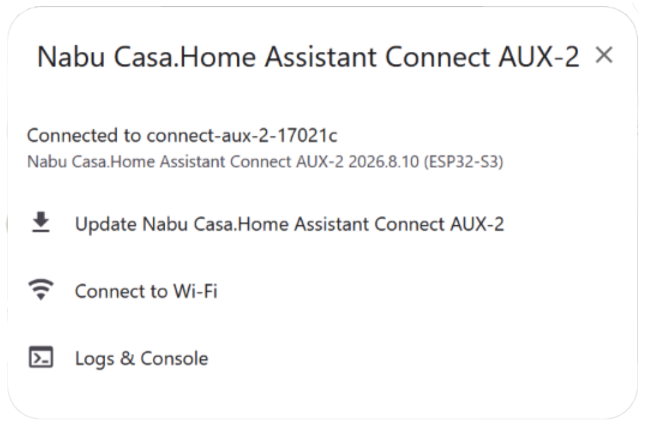
In the dialog that opens, select Connect to Wi-Fi, choose your Wi-Fi network, and enter its password.
You can also reset Connect AUX-2 to its factory settings and set it up over Wi-Fi again.
Once Wi-Fi is set up, Connect AUX-2 on USB-C power falls back to Wi-Fi when you unplug the Ethernet cable.
PoE and serial devices
On certain PoE switches, voltage present on a serial (RS-232) port before power-up can prevent Connect AUX-2 from powering via PoE. This is caused by external ungrounded AV equipment, not a device fault, and field workarounds exist.
Edit this article on GitHub